From finished PNG to Marketplace
Upload & Sell Roblox Clothes
To upload a classic Roblox Shirt or Pants, open Creator Dashboard, choose Avatar Items → Classics, and submit the matching clothing image. Uploading sends it for moderation; it does not automatically put it on sale. Once eligible and approved, open the item's settings, choose a price and enable On Sale. Keep the upload fee separate from the publishing advance, and check Roblox's current requirements before paying.
Requirements and fees checked October 21, 2026. Recheck Roblox's current rules before submitting.
Open Roblox Creator DashboardStart with the clothing PNG
From this Maker, export Shirt PNG and Pants PNG separately at 585 × 559. Check each garment in the Maker's live preview and save its editable project before leaving. Roblox also recommends a Studio test before upload; that test has no fee.
Use the original practice outfit below to rehearse the file handoff. first-shirt.png is the navy Shirt with one chest patch; first-pants.png has a patch on each front leg. Both are actual Maker exports. The accompanying project reopens both garments for editing; it is not an uploadable clothing image.
For a Shirt submission choose first-shirt.png and Asset Type Shirt. For Pants choose first-pants.png and Asset Type Pants. Give your own finished designs meaningful names, such as Navy Patch Shirt and Navy Patch Pants, so you can distinguish them later. Customise the practice artwork before publishing your own item.
Check the creator and account
Decide whether the item belongs to you or a group before submitting it. Use Creator Dashboard's account switcher to select the intended group, then check the creator and your permissions. A personal account and a group are not interchangeable destinations.
For a group, Create avatar items allows creation, while Configure avatar items covers sales settings for existing group items. Being able to create an item does not by itself establish permission to set its price or put it on sale.
Roblox's current Marketplace policy separates permission to upload from permission to publish and keep an item on sale. Check the linked requirements for your account or group; a valid PNG alone does not establish eligibility.
| Stage | What to check |
|---|---|
| Upload | ID verification or a linked parental account; upload fee. |
| Publish for sale | Verification, 2-step verification, publishing advance, and Roblox Plus or Premium 1000/2200 for the individual creator or group owner. |
| Keep it on sale | Verification remains valid and the individual creator or group owner retains the required membership. |
Separate the two fee stages
The amounts below were checked on October 21, 2026. Read the fee shown by Roblox before confirming a charge; older tutorials may describe different rules or combine upload and publication.
A publishing advance can be rebated through qualifying sales under Roblox's rules. It is not a promise that your item will sell or that you will recover the amount. Roblox generally does not refund the upload fee when moderation rejects an item.
| When | Current amount | What it does |
|---|---|---|
| Submit the item | 80 Robux per submission | Upload fee; not a guarantee of moderation approval. |
| First publish for sale | 10 Robux for a classic Shirt or Pants | Separate publishing advance; not the upload fee. |
Upload through Creator Dashboard
Open Creator Dashboard and go to Avatar Items → Classics. Drop in your finished clothing image, or use Upload Asset. On the upload page select Shirt or Pants to match the file, then enter a name and description. Confirm the intended creator and the displayed charge before using Upload.
For the practice Shirt, pair first-shirt.png with Shirt and the name Navy Patch Shirt. Repeat separately for the Pants only when you intend to submit a second item. A T-Shirt is a different classic asset: do not select it for a full Shirt or Pants template.
Check moderation before selling
Find the submitted asset under Avatar Items → Classics and open it to check its moderation status. Keep the item identity and creator clear when checking progress; seeing a local preview or a completed upload is not evidence that Roblox approved the item.
While review is pending, follow the status shown by Roblox instead of paying to upload the same file again. If it is rejected, read the reason, check the applicable rules and correct only the issue you can identify. Use Roblox's stated appeal route when appropriate; neither re-uploading nor an appeal guarantees approval. Do not upload another creator's artwork without permission.
Set a price and enable On Sale
Once approved and eligible for publishing, open the classic asset's Configure page. Check the item name and description, set the price you want to charge, and enable On Sale. Review any first-publication advance and confirmation shown by Roblox before completing the changes.
Then open the item's Marketplace listing to verify the intended creator, displayed price and sale availability. The listing is the outcome to check; a PNG on your computer or an asset awaiting review is not an item for sale. A sale price is not your net earnings: Roblox's commissions and other applicable rules still apply.
Choose the right recovery path
Start from the stage that failed. Our browser preview cannot read Roblox's account, moderation or game state, so a successful local check does not diagnose every remote problem.
If the clothing item is already available in your account, open Avatar on Roblox's website, choose the relevant clothing category and select the item. Its icon should become highlighted. If the website's Avatar picture does not update, use the Redraw link beneath it when available. Roblox says this regenerates the avatar thumbnails and may take a few minutes; follow its browser troubleshooting if the picture still fails to update.
If the item appears on your website Avatar but changes or disappears in one experience, check that experience separately. Roblox's Avatar Settings can replace a classic clothing type with a custom item, or remove it when an override is enabled with no asset ID. If you do not manage the experience, ask its creator about its avatar settings before changing or uploading your PNG again.
| What you see | Next useful check |
|---|---|
| Template or image rejected | Check the actual exported dimensions and file type. Use the clothing PNG, not project JSON or an Avatar screenshot. Start from the original source if the image was cropped or resized. |
| Upload or sale controls unavailable | Check the selected creator, account/group permissions and current eligibility requirements. Changing the PNG cannot fix account eligibility. |
| Moderation still pending or rejected | Read the exact asset status and reason in Roblox. Follow the moderation guidance; do not repeatedly pay for identical submissions. |
| Approved but not for sale | Check On Sale, price, publishing requirements and the intended creator's listing. |
| Owned item missing from the website Avatar picture | Check that the item is selected in Avatar Editor. Use Redraw beneath the picture when available; this is a thumbnail check, separate from moderation and sale settings. |
| Clothing changes in one experience | Check with the experience creator about avatar clothing overrides. A correct website preview does not establish the settings used inside that experience. |
| Wrong creator or wrong garment type | Stop before another charge, identify the submitted item and review Roblox's available settings/support route. Do not assume it can be transferred or that a fee will be refunded. |
Keep a checklist beside your files
Keep your editable project and finished PNGs together. The checklist records the decisions to make at each stage; it does not collect account details or submit anything. Recheck the official requirements and displayed fees when you use it later.
- Correct Shirt or Pants PNG, native size, artwork you may use
- Intended individual or group creator and permissions
- Current verification, membership and fee requirements
- Moderation status checked before publication
- Price and On Sale confirmed on the intended listing
- Editable project retained for later changes
Two garments. Two separate PNGs.
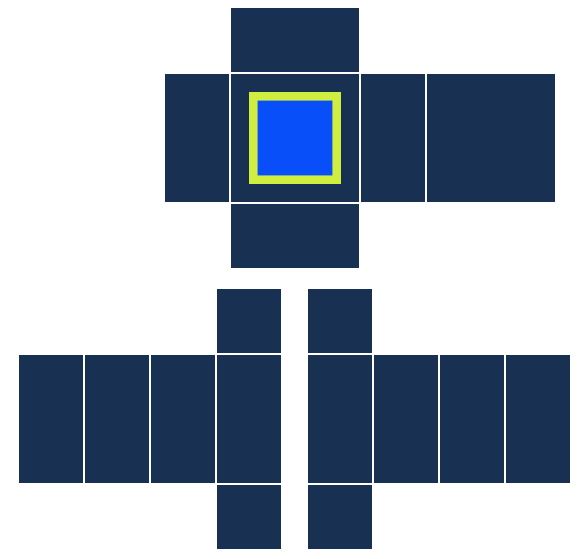
This flat clothing image is the Shirt submission file. It is not an Avatar screenshot or the editable project.
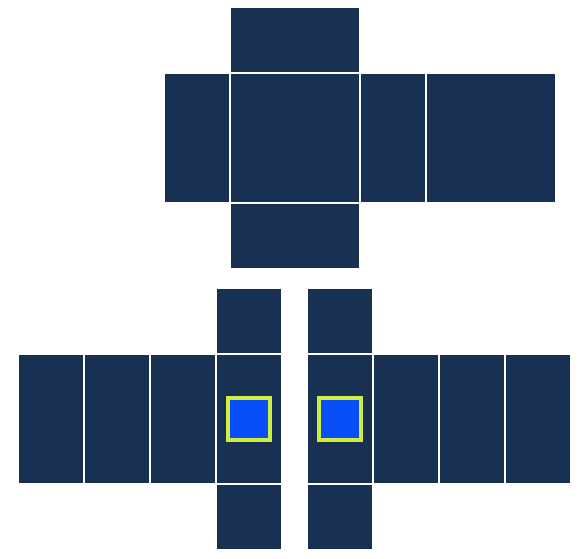
The Pants are a separate file and a separate asset type. Keep the two exports clearly named before continuing to Roblox.
Correct versus wrong
Submit the finished Shirt PNG as Shirt, or the finished Pants PNG as Pants. Check the actual asset and creator again before putting it on sale.
An Avatar preview is a picture of the result. Maker project JSON keeps editable layers. Neither is the finished clothing template Roblox needs.
Questions creators ask
Is uploading a Roblox shirt the same as putting it on sale?
No. Upload sends the image for moderation. Publication and On Sale are later steps with their own requirements and a separate publishing advance.
How much does a classic Shirt or Pants upload cost?
As checked on October 21, 2026, Roblox's docs list an 80 Robux upload fee per submission and a separate 10 Robux publishing advance for a classic Shirt or Pants. Recheck the fee shown by Roblox before confirming.
Does the Clothing Tester upload or sell my clothes for me?
No. The Maker creates and exports local files. You handle account verification, payment, submission, moderation and sale settings on Roblox.
Can I upload a saved Maker project or downloaded preview?
No. Export the matching Shirt or Pants clothing PNG. The saved JSON is for reopening this Maker, and the Avatar preview is a separate reference image.
Why is my owned clothing missing from the website Avatar picture?
Open Avatar on Roblox's website and check that the clothing item is selected and highlighted. If the picture does not update, use Redraw beneath it when available and allow a few minutes for the thumbnails to regenerate. Follow Roblox's Avatar troubleshooting if that fails. A problem inside one experience needs a separate check of its avatar settings.
Does a correct preview guarantee moderation approval or sales?
No. A preview helps inspect the artwork. Roblox controls eligibility, moderation and publication; a listing does not guarantee purchases or earnings.
Check the rules before you pay
Roblox controls eligibility, charges, moderation and sale availability. Use these pages to recheck the requirements for your own submission.